

iPhone Security and Privacy for the Modern User: Beyond Basic Settings
April 12, 2026You’ve probably done the basics. A strong passcode, Face ID, maybe even turned off some app tracking. Good. That’s your front door locked. But in today’s digital landscape, that’s just the start. Honestly, threats—and data collection—are more like water, seeping in through cracks you didn’t even know were there.
This guide is about moving beyond the obvious. We’re going to look at the layers of iPhone security and privacy that most folks never touch. The settings that feel buried, the habits that make a difference, and the mindset shift you need. Let’s dive in.
The Invisible Data Trail: Locking Down What You Don’t See
Your iPhone is constantly talking. To Apple, sure, but also to a whole ecosystem of services and, frankly, data brokers. The goal here isn’t paranoia—it’s control. It’s about deciding who gets to listen in.
1. The Privacy Report Card: App Privacy Report
This is a game-changer, and it’s hiding in Settings > Privacy & Security > App Privacy Report. Turn it on. After a week, it shows you a stark ledger: which apps used your camera, microphone, location, and contacts, and when. You might find a social media app pinging your location 120 times a day, or a note app accessing your contacts for no clear reason. Knowledge is power. Revoke permissions ruthlessly.
2. The Silent Trackers: Limit IP Address Tracking
Here’s a subtle one. In your Wi-Fi settings, tap the “i” next to your network. See Limit IP Address Tracking? Make sure it’s on. This helps prevent networks and websites from creating a fingerprint of your device based on your IP address. It’s a small but meaningful barrier against cross-site tracking.
Communication Fort Knox: Securing Your Messages and Mail
Your inbox and messages are a treasure trove. Let’s build a vault around them.
Locking Down iMessage & FaceTime
Go to Settings > [Your Name] > Name, Phone Numbers, Email. Under “Reachable At,” review every address. Remove old emails you don’t use for iMessage. This shrinks the attack surface for spam or phishing attempts. While you’re there, in Messages settings, turn on Filter Unknown Senders and set iMessage to use Start New Conversations from your phone number only, not your email. It just cleans things up.
The Email Privacy Protections You’re Missing
If you use Apple Mail, there are two killer features. First, Hide My Email. This lets you generate unique, random email addresses that forward to your real one. Use it for every newsletter, app sign-up, or sketchy website form. It’s like a disposable mask for your inbox.
Second, Mail Privacy Protection. Turn it on in Settings > Mail. It prevents senders from knowing when you open an email and masks your IP address. It basically breaks email tracking pixels. You know, those tiny invisible images that marketers use? Yeah, those.
Advanced Lock Screen & Access Tactics
Someone has your phone for 60 seconds. What can they do? More than you think.
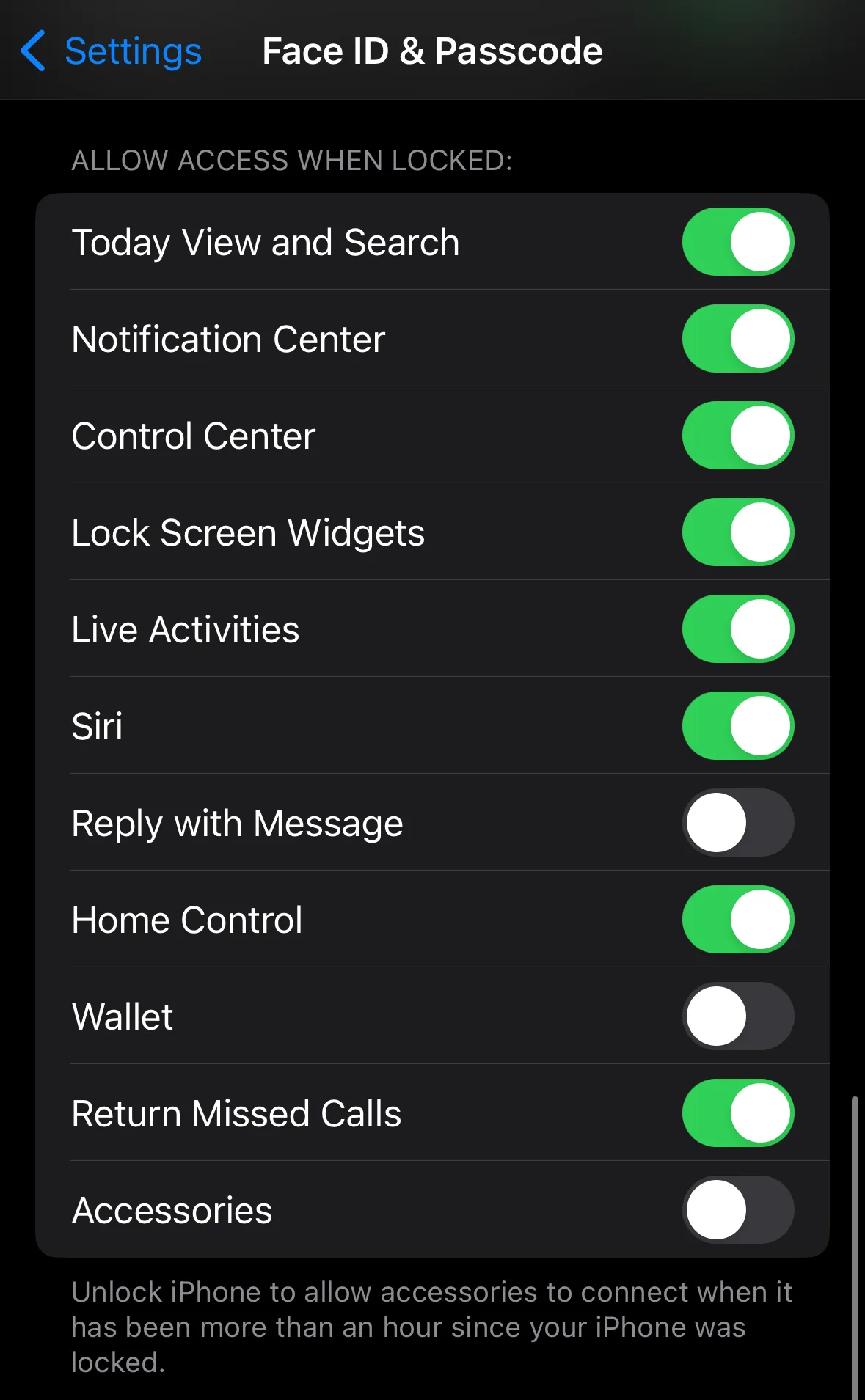
Head to Settings > Face ID & Passcode. Scroll down to the “Allow Access When Locked” section. This is critical. Do you really need Today View and Search accessible from the lock screen? Probably not. Control Center is a big one—turning off access here prevents someone from putting your phone in Airplane Mode or enabling/disabling Wi-Fi, which can thwart Find My. Also, turn off USB Accessories when locked. This stops devices (like hacking tools) from connecting to your iPhone via USB if it’s been locked for over an hour.
And here’s a pro tip: In an emergency, quickly press the side button five times. It initiates Emergency SOS and, crucially, disables Face ID/Touch ID until you enter your passcode. A vital failsafe.
Safari: Your Web Browser as a Privacy Shield
Safari is honestly packed with privacy features most people ignore. Let’s fix that.
| Setting | Where to Find It | Why It Matters |
| Prevent Cross-Site Tracking | Safari Settings | On by default, but check. Stops advertisers from following you across websites. |
| Hide IP Address | Safari Settings | Set this to “From Trackers” or, for max privacy, “From Trackers and Websites.” |
| Privacy Preserving Ad Measurement | Safari Settings | Leave this on. It allows ads but anonymizes your interaction data. |
| Advanced Tracking & Fingerprinting Protection | Safari Settings > Advanced | Enable both. Fingerprinting is a sneaky way to ID your device by its unique configuration. |
Also, make a habit of using Private Browsing tabs for, well, anything you don’t want tied to your history. And clear your history and website data regularly from the Safari settings page.
The iCloud Layer: Security for Your Digital Life
iCloud is your brain’s backup. Protecting it is non-negotiable.
First, Advanced Data Protection. This is Apple’s highest level of cloud security. Find it in Settings > [Your Name] > iCloud > Advanced Data Protection. Turn it on. What does it do? It end-to-end encrypts almost all your iCloud data—including your iCloud Backup, Notes, Photos, and more. Even Apple can’t access it. The trade-off? You are solely responsible for your recovery key. Lose your devices and that key, and your data is gone forever. It’s a serious step for serious privacy.
Second, audit your iCloud Backup. Do you need everything backed up? Maybe that random game’s data doesn’t need to be in the cloud. Fewer data points in the cloud means, well, fewer points of potential exposure.
Mindset & Maintenance: The Human Element
All the settings in the world won’t help if your habits are leaky. Here’s the ongoing work:
- Update, Update, Update: Install iOS updates immediately. They often contain critical security patches for vulnerabilities that are actively being exploited. Delaying is an invitation.
- App Audit Quarterly: Go through your installed apps. Delete what you don’t use. For the keepers, revisit their permissions in Settings > Privacy. An app you use for cropping photos shouldn’t still have microphone access.
- Beware of Social Engineering: The strongest lock can’t stop you from handing someone the key. Be skeptical of unsolicited messages, calls, or emails asking for codes, passwords, or to “verify” your account. Apple will never call you and ask for that.
- Use a Managed Domain in iCloud+: If you have iCloud+, this lets you create a custom email domain (like @myfamily.com) with built-in Hide My Email functionality. It’s a sleek way to unify and protect your communication identity.
Security isn’t a state you achieve; it’s a practice. It’s a series of small, conscious choices that build up over time. Your iPhone is an incredibly private device by design, but its true potential is unlocked only when you, the user, decide to dig deeper than the surface.
That control—the ability to decide what you share and with whom—is the ultimate modern luxury. It’s quiet. It’s invisible. And it’s yours to claim.

